
New Facebook Comment Box for Blogger With Notifications Enabled
Facebook comment for your blog can serve as a good way to make your
site more engaging and encourage readers to drop comments if they’re
already logged in to Facebook. It also serves as a source of traffic
since using Facebook comment shares the comment and post page on the
visitor’s Facebook wall. One thing should be noted though: Facebook
comment has no SEO value
since it’s being displayed in an iframe which Google won’t index.
Comments made with the regular comment box on your site has more
advantages especially if you get loads of comment, more keywords you
didn’t actually mention in the post content but appearing in comments do
bring more search engine traffic. This is something Facebook comment lacks, execept the extra traffic you get from Facebook.
I just thought you should know that before you implent it on your blog. As you can see, I do use it too. I wrote a post on this particular topic earlier but Facebook has changed since, lots of things on the post may not look exactly as explained. Also, this one has a feature the previous one didn’t have – getting notified of every comment made on your blog. One other thing, I customized this with a little CSS. Below is a screenshot of what it looks like:

You may also check the live demo on this blog here.
 Just follow the steps and you’ll have a nice Facebook comment box installed on your blog in no time.
 ii. Enter your application name and namespace,input the captcha code and proceed.
 iii. On the next page, enter your custom domain name (if you’re using
a custom domain) or just blogspot.com (if you’re using blogspot sub
domain) in the space provided for App domain.
iii. On the next page, enter your custom domain name (if you’re using
a custom domain) or just blogspot.com (if you’re using blogspot sub
domain) in the space provided for App domain.
For App website, enter you blog URL. ( http://www.xyz.com/ or http://xyz.blogspot.com/ ). Be sure it starts with http:// and ends with / as shown in the screenshot below:
 iv. Scroll down a bit and hit the Save Changes
button. Now you’re done with creating your facebook application but
there’s one more thing to do. On that same page, you should see your
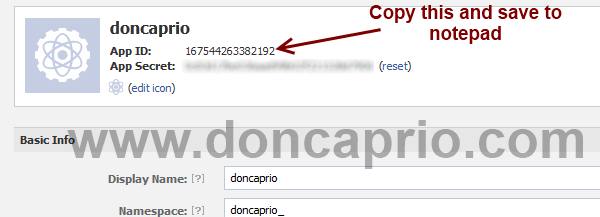
application ID. Copy it and save somewhere, you’re gonna be needing it.
iv. Scroll down a bit and hit the Save Changes
button. Now you’re done with creating your facebook application but
there’s one more thing to do. On that same page, you should see your
application ID. Copy it and save somewhere, you’re gonna be needing it.
 Now let’s head to your blog and finish this up
i. xmnls attribute
ii. SDK script
iiI. Open graph meta tag
iv. Comment form iframe code
Log in to your blogger account and click on Template > Edit HTML > Check Expand Widget Template
i. Press Ctrl + F and search for this code:
iv. Now here’s the last part of tweaking your template your template to make it display Facebook comment box. The last thing is the iframe to display the comment box where you want. Search for this in your template:
I just thought you should know that before you implent it on your blog. As you can see, I do use it too. I wrote a post on this particular topic earlier but Facebook has changed since, lots of things on the post may not look exactly as explained. Also, this one has a feature the previous one didn’t have – getting notified of every comment made on your blog. One other thing, I customized this with a little CSS. Below is a screenshot of what it looks like:
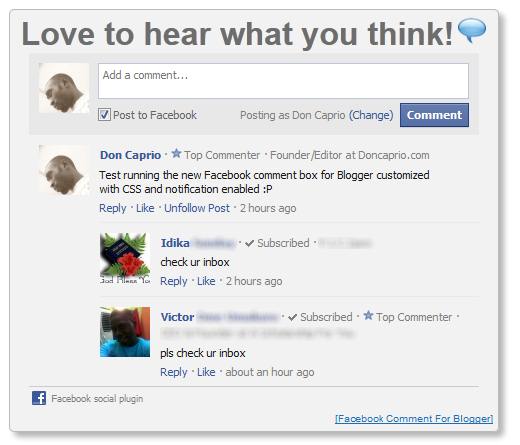
You may also check the live demo on this blog here.
How to add Facebook comment box to Blogspot
There are about five steps to get this done but chill out, it’s easy, ok? Just follow the steps and you’ll have a nice Facebook comment box installed on your blog in no time.1. Creating a Facebook Application
i. Head on to facebook developer page, you should create a new app by clicking the button at the top right.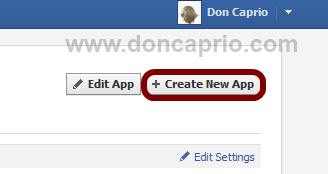
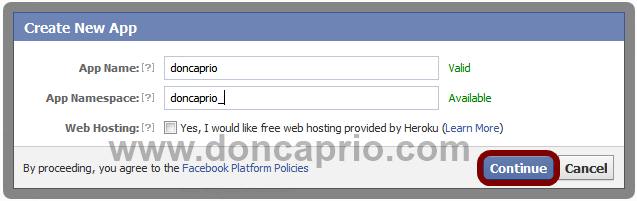
For App website, enter you blog URL. ( http://www.xyz.com/ or http://xyz.blogspot.com/ ). Be sure it starts with http:// and ends with / as shown in the screenshot below:
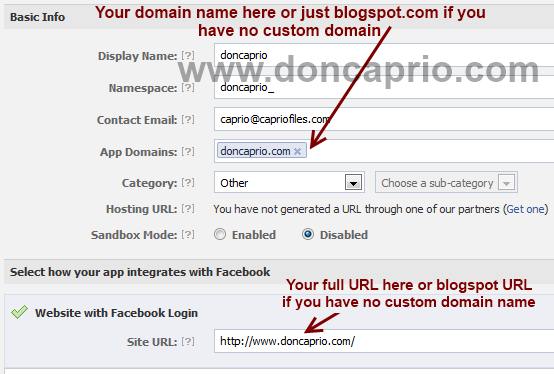
2. Adding the codes to your template
We’re adding four sets of codes into your template to make this work the way we want, aight?i. xmnls attribute
ii. SDK script
iiI. Open graph meta tag
iv. Comment form iframe code
Log in to your blogger account and click on Template > Edit HTML > Check Expand Widget Template
i. Press Ctrl + F and search for this code:
This should be found on the second or third line of your template.
- Right in front of this, add the following code:
ii. Press CTRL + F on your keyboard and search for this:
If you can’t find this, search for something similar. You should search for this instead:
In the next line, paste this code:
Be sure to replace YOUR APPLICATION ID HERE with the application ID I asked you to copy earlier, remember?
iii. Now, let’s add the open graph meta tag. Search for this code in your template:
In the line above it, paste this piece of code:xmlns:fb='http://www.facebook.com/2008/fbml'- Right in front of this, add the following code:
xmlns:fb='http://www.facebook.com/2008/fbml'
-Be sure to have a space before and after this code. Take a look at the example below:iii. Now, let’s add the open graph meta tag. Search for this code in your template:
YOUR_APP_ID
" />
Replace YOUR_APP_ID with that same application ID you previously copied.iv. Now here’s the last part of tweaking your template your template to make it display Facebook comment box. The last thing is the iframe to display the comment box where you want. Search for this in your template:
In the line just below it, paste this code:
Love to hear what you think!
Love to hear what you think!


Hmm it seems like your website ate my first comment (it was
ReplyDeleteextremely long) so I guess I'll just sum it up what I had written and say, I'm thoroughly enjoying your blog.
I too am an aspiring blog blogger but I'm still new to the whole thing. Do you have any suggestions for inexperienced blog writers? I'd genuinely
appreciate it.
My website ... diets that work fast
I implemented it on my blog, but I don't get any notifications when someone comments... why?
ReplyDeletesame problem here bro, let me know when you get this working
DeleteKeep on ωriting, great job!
ReplyDeleteFeel free to νisit mу blog ... crear facebook
Hі thеre, I would liκe to subscгibe for this blog to get mοst rеcent updаtes, ѕο ωherе can i do it рleaѕe helρ.
ReplyDeletemy web ѕite - crear facebook gratis